Install with an AI coding assistant
One click copies a ready-made prompt for Cursor, Copilot, Claude Code or ChatGPT, with your real tracking tag inside.
What it does
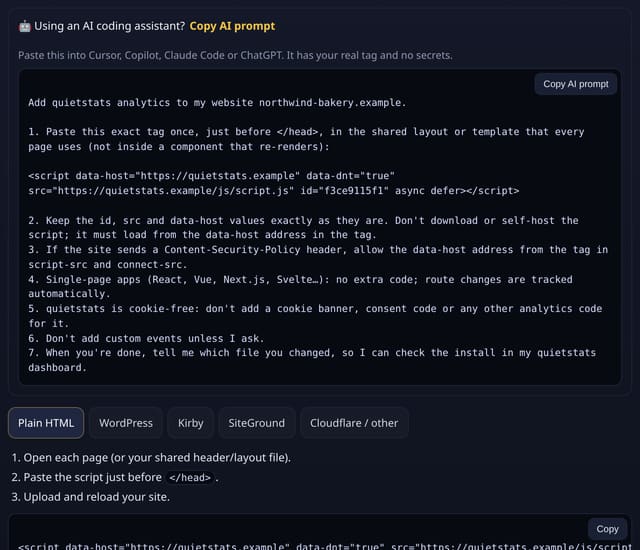
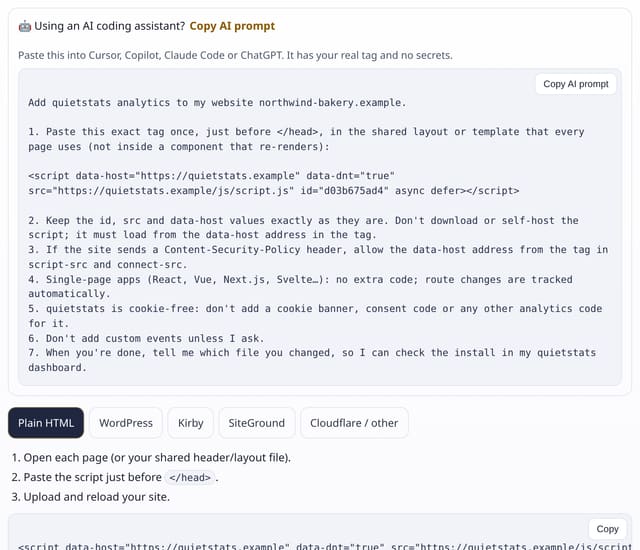
On the Add site and Manage site pages, “Copy AI prompt” gives you instructions an AI coding assistant can follow: put this exact tag once before </head> in the shared layout, keep it loading from quietstats, allow it in a Content-Security-Policy, and don’t add cookie banners or other code for it.
Why it matters
Many sites are now built with an AI assistant. A precise prompt stops it inventing its own snippet, self-hosting the script or adding a cookie banner you don’t need.
How to use it
- On Sites, press Copy AI prompt next to your site.
- Paste it into Cursor, Copilot, Claude Code or ChatGPT in your project.
- Let the assistant add the tag, then press 🔍 Check install to confirm visits arrive.
How it works
- The prompt contains your public site ID and the tag, nothing else: no API key and no secret.
- It tells the assistant which file to change and asks it to report back.
- Then use “Check install” to confirm visits arrive.
Privacy
- Collected: Nothing new
- No cookies, and nothing stored on the visitor’s device.
- Reports show totals only: never a visitor list, IP address or single visit.
Limits
- Rows: 0
Plans
Every plan, including Free. quietstats is free during launch: the Free plan covers 1 site and 5,000 pageviews a month, and no card is needed. See pricing.
Questions
Is it safe to paste into an AI tool?
Yes. The site ID in the tag is already public on every page of your site. The prompt contains no keys or passwords.