Click any row to filter the dashboard
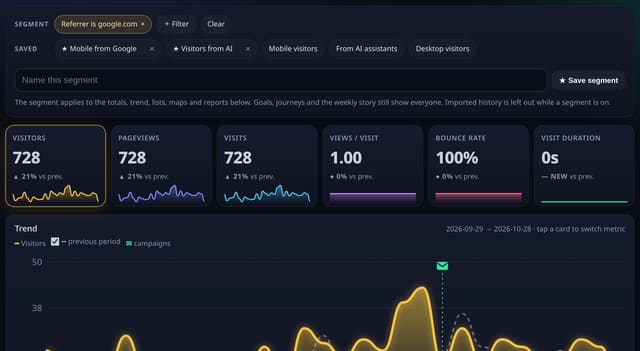
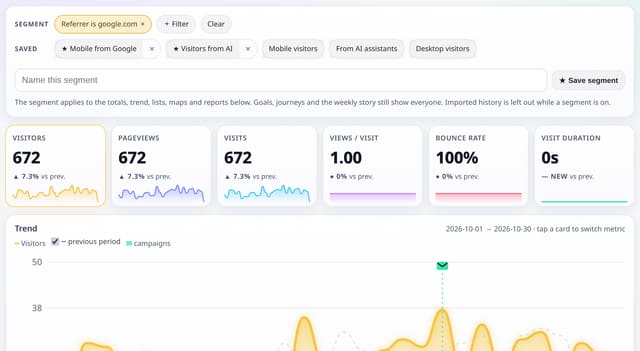
Click a page, source, country, device or browser and the whole dashboard narrows to it. A chip with × undoes it.
What it does
Every row in the Top pages, Sources, Countries, Devices, Browsers, OS, Screens and UTM cards, and in their Expand views, is a filter. Clicking one adds it to the address bar (?f=page==/pricing), so the filtered view can be bookmarked or shared with your team.
Why it matters
The quickest question in analytics is “and what about just these?”. One click answers it, without building a segment first.
How to use it
- Click a page, source, country, device or browser in any card.
- The whole dashboard narrows to it and a chip appears at the top; press × on the chip to undo.
- Click more rows to stack filters, then save the result as a segment if you’ll want it again.
https://quietstats.co.uk/app?site=YOUR_SITE_ID&f=referrer==google.com;device==MobileReplace YOUR_SITE_ID with the ID shown on your site’s Manage page.
How it works
- Clicking a value on a key already filtered replaces it.
- Filters stack: click Google, then Mobile, for mobile visits from Google.
- Keyboard: Tab to a row label and press Enter or Space.
- The ↗ beside a value opens the page itself instead; it never filters.
Privacy
- Collected: Nothing new
- No cookies, and nothing stored on the visitor’s device.
- Reports show totals only: never a visitor list, IP address or single visit.
Limits
- Up to 10 filters at once
- Rows: 0 (reads only)
Plans
Every plan, including Free. quietstats is free during launch: the Free plan covers 1 site and 5,000 pageviews a month, and no card is needed. See pricing.
Questions
Can I save a filter?
Yes. Save any filtered view as a named segment.
Does it work on shared dashboards?
Shared links show the numbers read-only, without click-to-filter.