How to use chart notes calendar file: your notes in your calendar
Download your chart notes as an .ics file that opens in Google Calendar, Apple Calendar or Outlook.
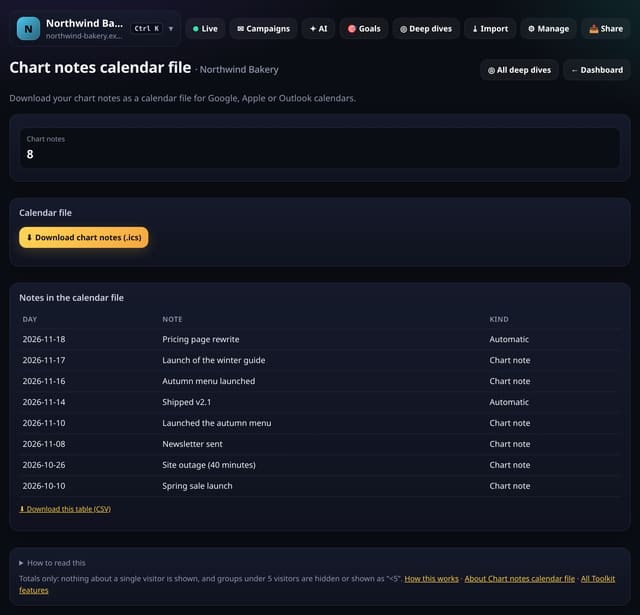
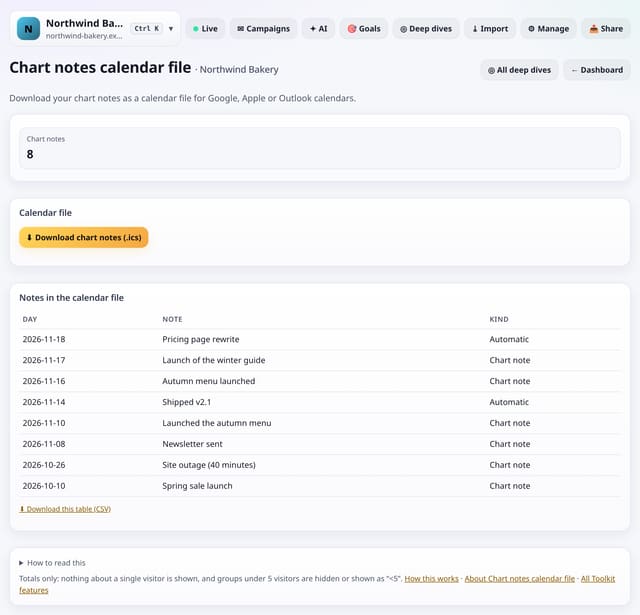
What it does
One tap downloads every chart note on the site as all-day calendar events. Import it into your calendar to see launches, campaigns and outages next to your meetings.
Why it matters
Your calendar is where you plan. Seeing past launches there helps plan the next ones.
How to use it
- Open Toolkit → Export and share → Chart notes calendar file, or search “Chart notes calendar file” on All reports (or go to /app/kit/notesics?site=YOUR_SITE).
How it works
- Open your dashboard and choose Toolkit in the menu (or the Toolkit button on Deep dives, or search for it on All reports).
- Under Export and share, tap Chart notes calendar file.
- Use the buttons on the screen; nothing is sent anywhere.
Privacy
- Collected: Nothing new from your visitors
- Not collected: Anything about a single visitor
- Not collected: Links between days: visitor ids still reset at midnight
- No cookies, and nothing stored on the visitor’s device.
- Reports show totals only: never a visitor list, IP address or single visit.
Limits
- A one-off download: nothing subscribes or syncs
- Up to 1,000 notes
- Read from the database only when you open it, then kept for 10 minutes
Plans
Every plan, including Free. quietstats is free during launch: the Free plan covers 1 site and 5,000 pageviews a month, and no card is needed. See pricing.
Questions
Does it sync?
No. It is a file you download and import; nothing is sent or subscribed.
Does it collect anything new?
No. It works from the pageviews, events and goals you already have, read when you open the screen and kept as totals for 10 minutes. Groups under 5 visitors are never shown exactly.
Related
Feature page: Chart notes calendar file: your notes in your calendar → What it is, why it matters, privacy and how other tools do it.