How to use compact mode: more on screen
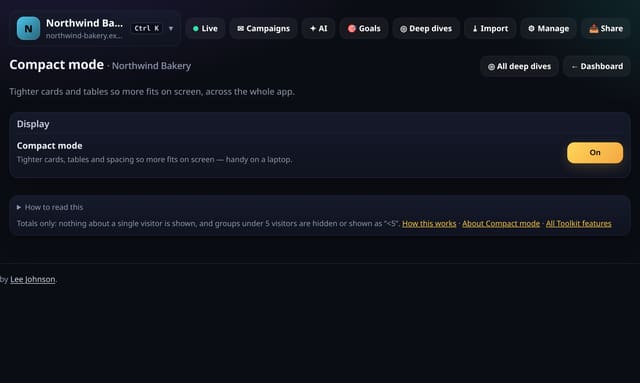
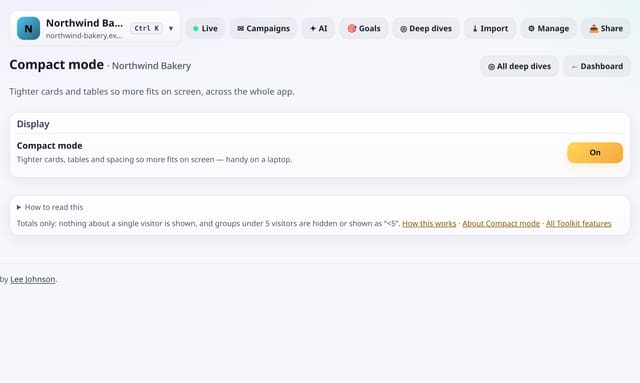
Tighter cards, tables and headings so more fits on screen, across the whole app.
What it does
One switch tightens card padding, table rows and heading sizes everywhere in the app, so long tables and dashboards need less scrolling on a laptop.
Why it matters
People who live in their stats want density; people who glance want space. Now both can have it.
How to use it
- Open Toolkit → Your view → Compact mode, or search “Compact mode” on All reports (or go to /app/kit/compact?site=YOUR_SITE).
How it works
- Open your dashboard and choose Toolkit in the menu (or the Toolkit button on Deep dives, or search for it on All reports).
- Under Your view, tap Compact mode.
- Use the buttons on the screen; nothing is sent anywhere.
Privacy
- Collected: Nothing new from your visitors
- Not collected: Anything about a single visitor
- Not collected: Links between days: visitor ids still reset at midnight
- No cookies, and nothing stored on the visitor’s device.
- Reports show totals only: never a visitor list, IP address or single visit.
Limits
- This browser only
- Turn it off any time
- Read from the database only when you open it, then kept for 10 minutes
Plans
Every plan, including Free. quietstats is free during launch: the Free plan covers 1 site and 5,000 pageviews a month, and no card is needed. See pricing.
Questions
Where is the setting kept?
In this browser only (local storage on quietstats.co.uk). It is not a cookie, nothing is sent to the server and it never touches your own website.
Related
Feature page: Compact mode: more on screen → What it is, why it matters, privacy and how other tools do it.
Guides on this topic
Related features
High contrast and larger textPrivacy and performanceA better mobile dashboardSee your trafficCustom dashboardsSee your trafficPages never countedPrivacy and performanceSigned-in sessionsPrivacy and performanceSpeed vs engagementPrivacy and performanceFocus modeSee your trafficHidden by small countsPrivacy and performance