How to use pinned reports: your reports at the top
Pin the reports you open most so they sit at the top of the Toolkit.
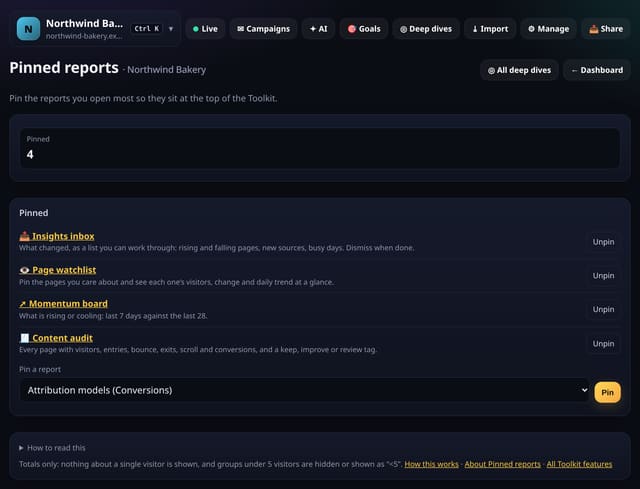
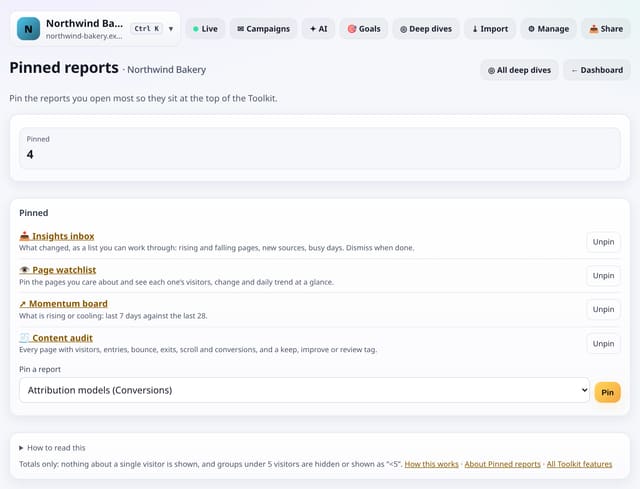
What it does
Pin any Analysis lab report or Toolkit screen. Pins show first on the Toolkit home for everyone on the site, with one-tap unpin.
Why it matters
With more than 100 screens, the ones you use every week should not be three taps away.
How to use it
- Open Toolkit → Your view → Pinned reports, or search “Pinned reports” on All reports (or go to /app/kit/pins?site=YOUR_SITE).
How it works
- Open your dashboard and choose Toolkit in the menu (or the Toolkit button on Deep dives, or search for it on All reports).
- Under Your view, tap Pinned reports.
- Use the buttons on the screen; nothing is sent anywhere.
Privacy
- Collected: Nothing new from your visitors. What you save in the Toolkit is kept for your site in your account
- Not collected: Anything about a single visitor
- Not collected: Links between days: visitor ids still reset at midnight
- No cookies, and nothing stored on the visitor’s device.
- Reports show totals only: never a visitor list, IP address or single visit.
Limits
- Up to 30 pins per site
- Pins are shared by everyone on the site
- Read from the database only when you open it, then kept for 10 minutes
Plans
Every plan, including Free. quietstats is free during launch: the Free plan covers 1 site and 5,000 pageviews a month, and no card is needed. See pricing.
Questions
Where is it kept?
In your quietstats account, against this site only (the kit_items table). Only people who can open the site see it, and you can remove any entry with one tap.
Does it collect anything new?
No. It works from the pageviews, events and goals you already have, read when you open the screen and kept as totals for 10 minutes. Groups under 5 visitors are never shown exactly.
Related
Feature page: Pinned reports: your reports at the top → What it is, why it matters, privacy and how other tools do it.